> For the complete documentation index, see [llms.txt](https://hacking-notes.jord4n.pro/llms.txt). Markdown versions of documentation pages are available by appending `.md` to page URLs; this page is available as [Markdown](https://hacking-notes.jord4n.pro/ja/hacking-wifi/wpa-wpa2-psk-network-attacks/traffic-manipulation/replacing-web-images-with-xerosploit.md).
# Xerosploit による Web 画像の置き換え
制御された Xerosploit ラボ中に、暗号化されていない Web トラフィック内の画像を置き換える。
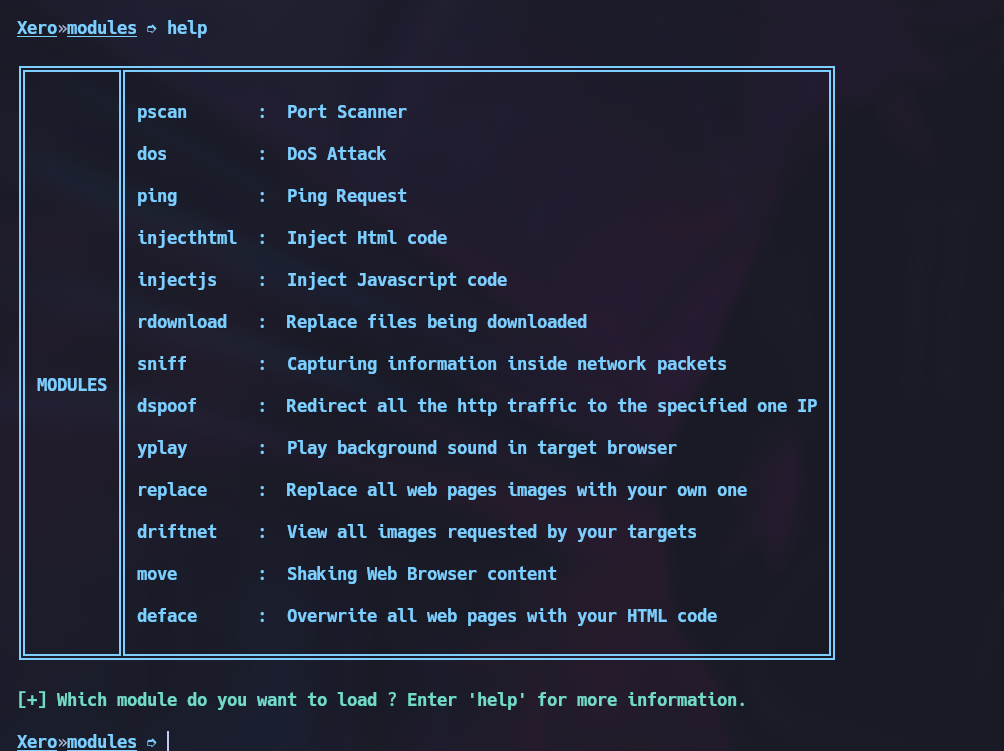
Xerosploit は `置換` 暗号化されていないWebトラフィック内の画像を置き換えるモジュールです。
{% embed url="" %}
### Xerosploit のインストール
インストーラーを実行します:
{% code overflow="wrap" %}
```bash
python3 install.py
```
{% endcode %}
### ツールを起動する
Xerosploit を起動します:
{% code overflow="wrap" %}
```bash
sudo python3 xerosploit.py
```
{% endcode %}
### 使用可能なコマンド
* `scan` ネットワークをマップします。
* `iface` ネットワークインターフェースを設定します。
* `gateway` ゲートウェイを設定します。
* `start` スキャンせずに対象のIPアドレスを設定します。
* `rmlog` Xerosploit のログを削除します。
* `help` 使用可能なコマンドを表示します。
* `exit` Xerosploit を終了します。
### ラボのデバイスを設定する
テスト用デバイスのIPアドレスを設定します:
{% code overflow="wrap" %}
```bash
172.20.10.2
```
{% endcode %}
### 置換モジュールを実行する
選択 `置換` モジュール:
選択し `置換`、その後モジュールを実行します。使用する画像ファイルを読み込んでください:
この画像パスを使用します:
`/home/jordan/Downloads/pwned.jpeg`
テスト用デバイスで訪問したWebページには、置換後の画像が表示されるようになります。これは暗号化されていないHTTPトラフィックにのみ適用されます。
このツールでは、選択したデバイスによって読み込まれた画像も表示できます。
---
# Agent Instructions
This documentation is published with GitBook. GitBook is the documentation platform designed so that both humans and AI agents can read, navigate, and reason over technical content effectively. Learn more at gitbook.com.
## Querying This Documentation
If you need additional information that is not directly available in this page, you can query the documentation by asking a question.
Perform an HTTP GET request on the following URL with the `ask` and `goal` query parameters:
```
GET https://hacking-notes.jord4n.pro/ja/hacking-wifi/wpa-wpa2-psk-network-attacks/traffic-manipulation/replacing-web-images-with-xerosploit.md?ask=&goal=
```
`ask` is the immediate question: it should be specific, self-contained, and written in natural language.
`goal` is what the user is ultimately trying to achieve, the reason they need the answer. Sharing it helps GitBook give you a better, more relevant answer. A goal is most helpful when it describes the outcome the user wants rather than restating the question. For example, with `ask=how do I create an API token`, a goal like `automate deployments from our CI pipeline` lets GitBook tailor the answer to that use case.
The response will contain a direct answer to the question and relevant excerpts and sources from the documentation.
Use this mechanism when the answer is not explicitly present in the current page, you need clarification or additional context, or you want to retrieve related documentation sections.